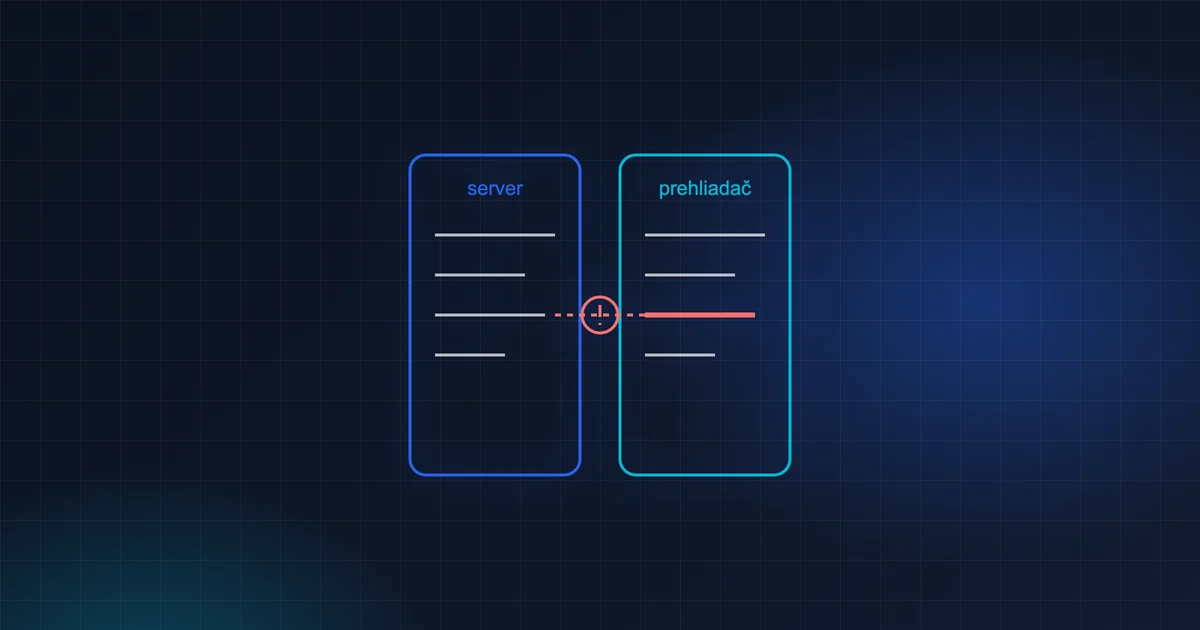
In short: A hydration mismatch happens when the server renders a page differently from how the browser then renders it. Most often it is caused by values only the browser knows — the time, the time zone, localStorage, the window size, the theme — or by data loaded one way on the server and another way in the browser.
If you work with Nuxt (or any other framework that renders pages on the server), sooner or later you will see this message in the console:
Hydration completed but contains mismatches.
The page usually works, so people ignore it. They shouldn't. I'll explain what it means and how to track it down.
What hydration is
With server-side rendering (SSR), a page comes to life in two steps:
- The server produces finished HTML and sends it to the browser. The visitor sees the content straight away.
- The browser downloads the JavaScript, Vue “takes over” the page and brings it to life — it attaches click handlers, reactivity and so on. This is called hydration.
During hydration, Vue expects the HTML from the server to be exactly what it would have rendered itself in the browser. If it isn't, it reports a mismatch and re-renders the problematic part.
Why it is a problem
- The user sees a flicker: first one thing (from the server), then another (from the browser).
- In the worse case, click handlers get attached to the wrong elements.
- A mismatch often reveals a real bug: the server did not see data it should have seen.
The most common causes
1. Things only the browser knows. window, localStorage, the screen size, the system theme (prefers-color-scheme). The server doesn't know them, so it renders the “default” and the browser then renders something else.
2. Time. The server runs in UTC, the browser in Slovak time. “Good morning” vs. “Good evening”, today's date, relative time such as “5 minutes ago”.
3. Randomness. Math.random() or generated IDs that come out differently on the server than in the browser.
4. Data that wasn't loaded on the server. On the server, the API call failed (and the error was silently swallowed), so an empty or default state was rendered. In the browser, the data loaded and something else was rendered. This is the most insidious one, because everything works locally and not in production.
5. Invalid HTML. A <div> inside a <p>, a table without <tbody>. The browser “fixes” the HTML and Vue then no longer matches it.
How to find the culprit
Step 1: look in development mode. A production build only reports a summary. In development mode, Vue prints which element and what content doesn't match. Often it's obvious straight away.
Step 2: mimic production. If the error only shows up on the live site, find out what is different there: the server's time zone (TZ=UTC), different data, a logged-in user, cookies (for example the selected theme), a different configuration. Run things locally as close to it as you can.
Step 3: compare the HTML from the server with the result. In the browser, view the page source (that's the server's output) and compare it with what you see in DevTools after loading. The difference is the culprit.
Step 4: check what Nuxt handed over. Nuxt sends the state from the server to the browser in a “payload”. If the data you expect is missing there, it wasn't loaded on the server.
How to fix it (properly)
Render browser-only things only after loading:
<ClientOnly>
  <PrepinacTemy />
  <template #fallback><span class="miesto-pre-prepinac" /></template>
</ClientOnly>
Data that loads only in the browser should have the same “loading” state on the server and in the browser:
const { data, status } = useFetch('/api/moja-praca', { server: false })
// status 'idle' and 'pending' alike = draw a skeleton, not an empty list
When calling your own API on the server, use functions that pass on the request context (cookies, login). In Nuxt, that's useFetch or useRequestFetch(). A plain $fetch called during server-side rendering has no context — and then you get an error or empty data on the server while everything works in the browser.
Compute time and randomness in one place — either only in the browser, or send them from the server as a finished value.
What not to do
Don't suppress the warning, and don't wrap half the page in <ClientOnly> just to make it go away. You lose the benefits of server-side rendering (speed, SEO) and merely hide the real bug.
Practice exercise
Create a mismatch on purpose so you learn to recognise it:
- Put
{{ new Date().getSeconds() }}into a component and refresh the page. You'll see a warning in the console — the server and the browser rendered a different number. - Fix it: compute the value only in
onMounted, or wrap the component in<ClientOnly>. - Try the second case: read
localStoragedirectly in a component's template. A mismatch again — and fix it again.
Once you've seen how the error arises, you'll find it in someone else's code within a few minutes.
Frequently asked questions
Does this also affect an application that runs only in the browser (SPA)?
No. Without server-side rendering there is no hydration, so no mismatch can arise either. That's why the error sometimes only appears once you run the same application with server-side rendering.
Is a mismatch a security problem?
Not in itself. But if it reveals that the server doesn't see the user's data, it's worth finding out why.
In closing
A hydration mismatch is like a warning light in a car. The car keeps going, but something isn't right. Most often it's a trifle. Sometimes, though, it reveals that the server doesn't see data it should see — and that's no longer a trifle.