In short: A fully fledged kiosk on Android requires your app to be the device owner. It only gets that level when a clean device is being set up, for example via a QR code. An ordinary device admin is not enough for a real lockdown.
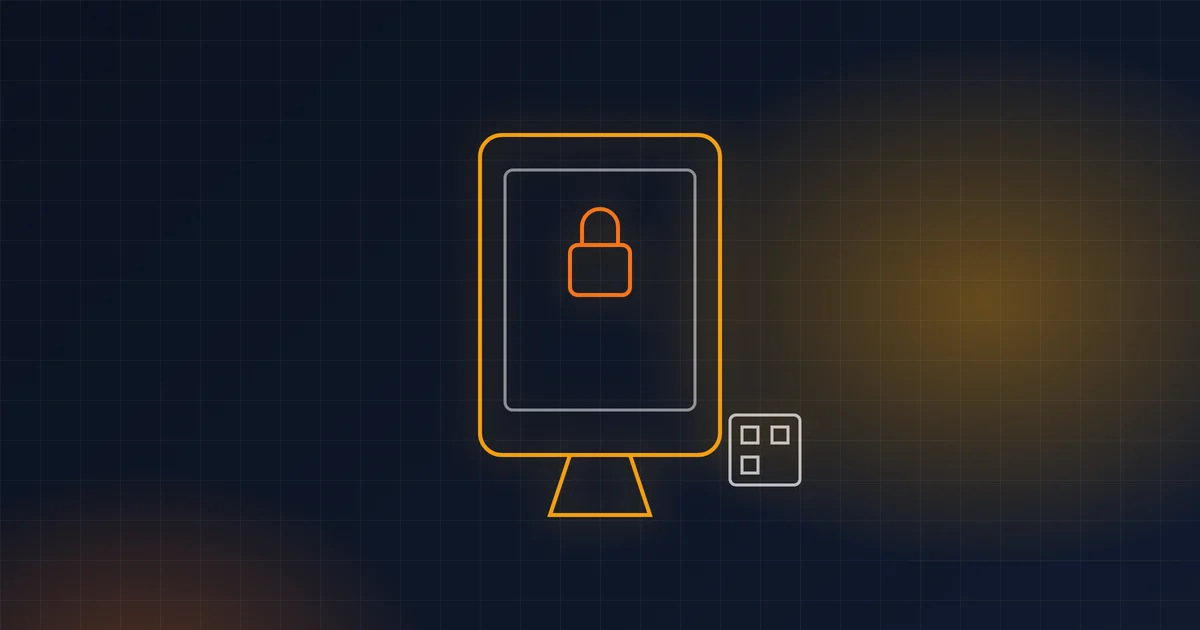
A kiosk is a device that does one thing: an attendance terminal by the door, an ordering tablet in a restaurant, an information screen in a lobby. Nobody using it has any business in the settings, the browser or games.
On Android this can be done properly. But it's good to know what you're getting into.
Three levels of “locking”
1. Screen pinning. An ordinary Android feature: you pin an app and the system keeps it in the foreground. The user, however, can unpin it with a button combination. Fine for a demo, not for a wall.
2. Device admin. The app gets some extra permissions (for example to lock the screen). It's an older model and not enough for a real kiosk — it can't prevent the user from leaving the app.
3. Device owner. The app becomes the “owner” of the device. It can switch on lock task mode — a mode that can't be left without its permission. It can hide the status bar, block buttons and set which apps are allowed to launch. This is a real kiosk.
How an app becomes the device owner
The owner can only be set on a “clean” device:
- On first power-on (or after a factory reset) through provisioning — on many devices, tapping the welcome screen repeatedly opens a QR code reader. The QR code contains a link to the app and the settings.
- Via adb during development, if no account is signed in on the device:
adb shell dpm set-device-owner com.priklad.kiosk/.KioskAdminReceiver
If there is already a Google account on the tablet, the command will refuse. That's not a bug — it's a safeguard.
The kiosk itself in code
The core is simple. As the device owner, you allow your app for lock task and start it:
val dpm = getSystemService(DevicePolicyManager::class.java)
val admin = ComponentName(this, KioskAdminReceiver::class.java)

dpm.setLockTaskPackages(admin, arrayOf(packageName))
startLockTask()
From that moment on, neither the home button nor the app overview will let the user out.
Pitfalls you will run into
1. The app must be able to exit by itself. A technician needs access to the settings, Wi-Fi, updates. Plan a service mode — a hidden gesture plus a PIN that temporarily release the kiosk. And bear in mind that the app can end up in the background in several ways along the way. It must be able to return from each of them.
2. Newer versions of Android tighten launching from the background. An app that isn't in the foreground can't just open a screen. So test the kiosk again on every new version of Android — what worked a year ago may stop working.
3. Removing the owner isn't a single click. The device owner can usually be removed only by the app itself (if it has a function for that) or by a factory reset. Before deployment, prepare a procedure for “freeing” the device — otherwise you'll be resetting the tablet on site.
4. Third-party devices. Some POS or payment terminals already have an owner — the manufacturer or the provider. In that case your kiosk can't be the owner, and promising that to the customer is a mistake. Always check this in advance.
5. Manufacturers do their own thing. Battery saving that kills background apps, custom home screens, different WebView versions. Test on the same model that will go to the customer.
6. Remote management. A kiosk on a wall in another city must be possible to update and diagnose remotely. Think about it from the start: how the device reports in, how you send it a command, how you find out it has dropped out.
Web or native app?
Many kiosks are in fact a web application in a full-screen WebView. That's sensible: you update the content without an installation. The native part then only handles what the web can't — the lock, launching on start-up, the printer, service mode.
Checklist before handing a kiosk over to the customer
- The app starts by itself after a restart and after a power cut.
- An ordinary person can't get out of the app — try it as a child who wants to play games.
- Service mode works and only the service team knows the PIN.
- After a network outage, the device reconnects and reports in by itself.
- You have a written procedure for updating the device remotely and for restoring it as a last resort.
Frequently asked questions
Can a kiosk also be built on an iPad?
Yes, iOS has similar modes (Guided Access for simple cases and device management via MDM for corporate deployments). The principles are similar, the tools differ.
Do I need a mobile device management (MDM) server for this?
Not for a few devices — your own app as the device owner will do. With dozens or hundreds of devices, MDM pays off.
What if the tablet drops off the Wi-Fi?
The kiosk should show politely that it's offline and recover by itself once the network is back. Sending an “I'm alive” signal to the server is also useful, so that you know about an outage before the customer does.
In closing
A kiosk is a small project with a large number of edge cases. It isn't hard, but it forgives little. If you take one on, expect that most of your time won't go into locking it down — but into how you get to the device once it's locked.
Source: Android Developers, Dedicated devices – Lock task mode, developer.android.com/work/dpc/dedicated-devices/lock-task-mode.